
“The open-source VLC Media Player is our top pick. This free video player has never failed us. It also is compatible with every OS, even if you’re using mobile ones such as iOS and Android.” – 7 Dec 2022 https://www.techradar.com/
Subtitles
You have to use VLC if you want to be able to see the English subtitles when watching a foreign language film in this film club. It is easy to download, install and use.
Download and install
Go the website: https://www.videolan.org/vlc/
Click the button Download VLC:
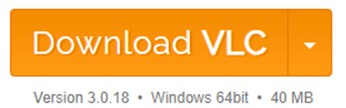
Note, the default operating system appears below the button. To choose a different platform scroll down to:

Click on your platform and then click the Download VLC button.
This immediately downloads the installation .exe file to your downloads directory. Double click this file to run it and install VLC.
Watch a Film
As with all programs you can either find the file – the downloaded .mp4 or .m4v file – and then open it with VLC, or you can start VLC and then open the .mp4 or .m4v file from it.
Open VLC from the file
In your downloads directory, or wherever you have placed it, select the .mp4 or .m4v file. In Windows you then right-click to open the context menu, and on this menu select “Open with”. This brings up a second menu on which you will see “VLC media player”:
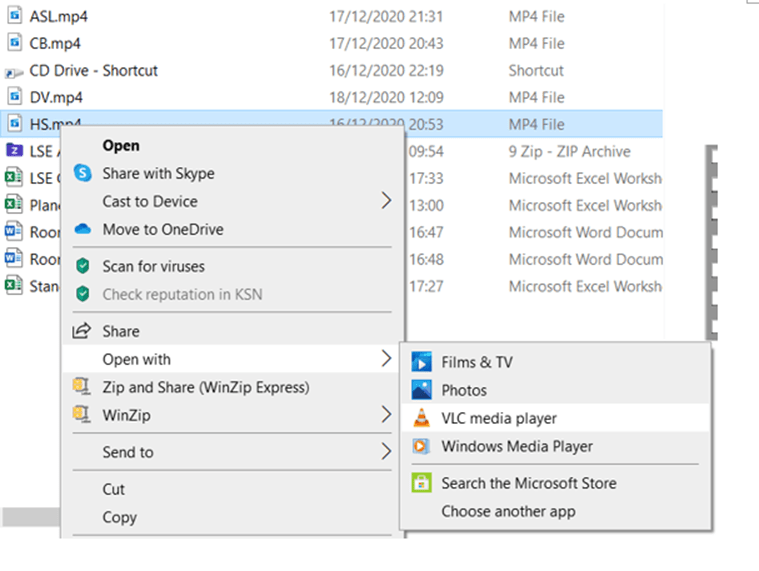
Select VLC media player.
Make VLC your default media player
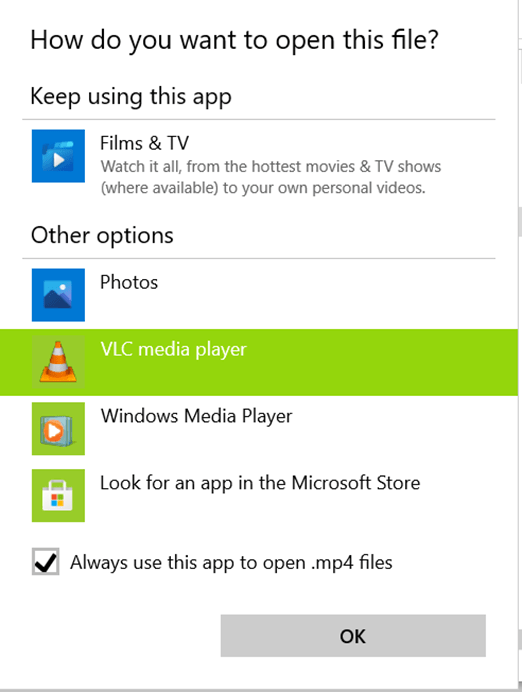
If you wish you can make VLC your default player for .mp4 files. Then all your .mp4 files will have the VLC icon (that looks like a striped traffic cone), and when you double click or select Open in future for any film it will use VLC.
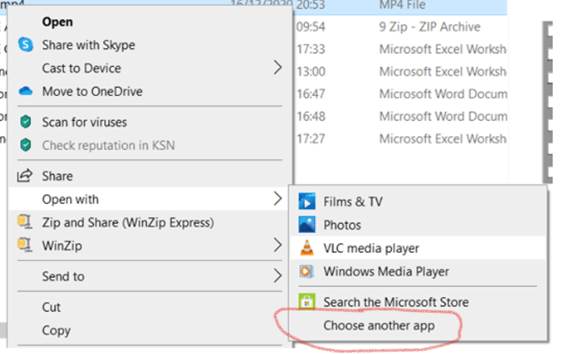
To do this, instead of selecting VLC media player straight away select the bottom option in the second menu above, “Choose another app”.
Then in the next pop-up menu select VLC media player and tick the box :
Open the file from VLC
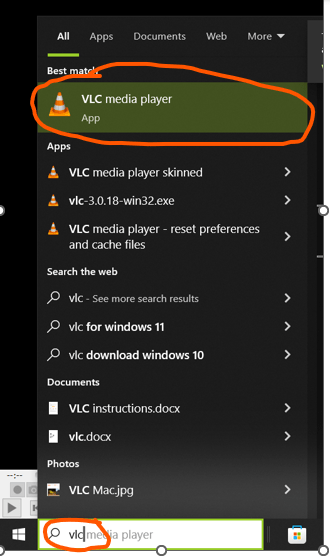
Alternatively just start VLC from the Start menu or a shortcut:
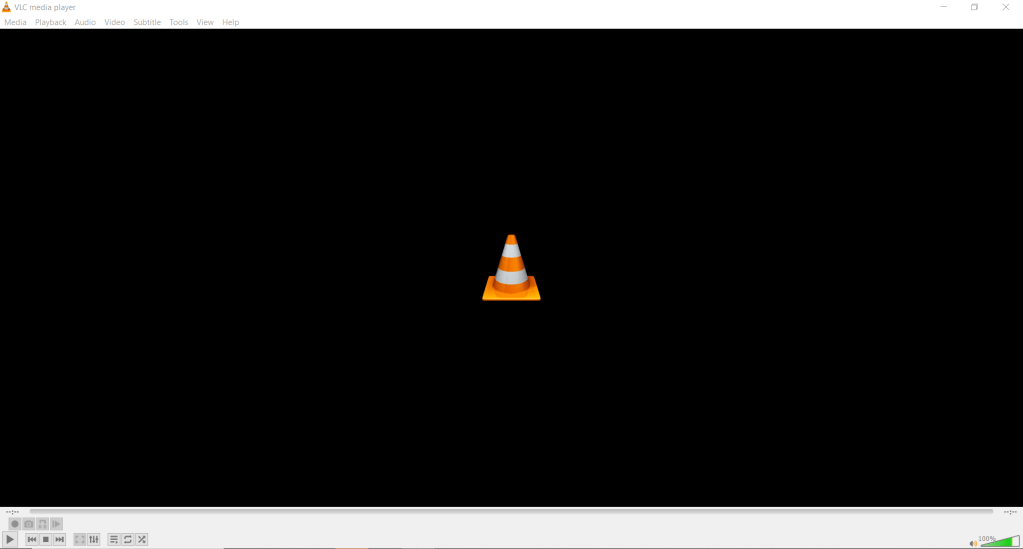
It will start with a blank screen:
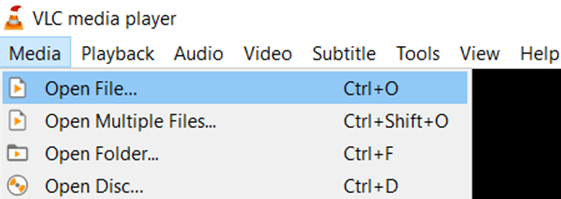
Select the first menu in the top left i.e. Media, and then the first option, Open File:
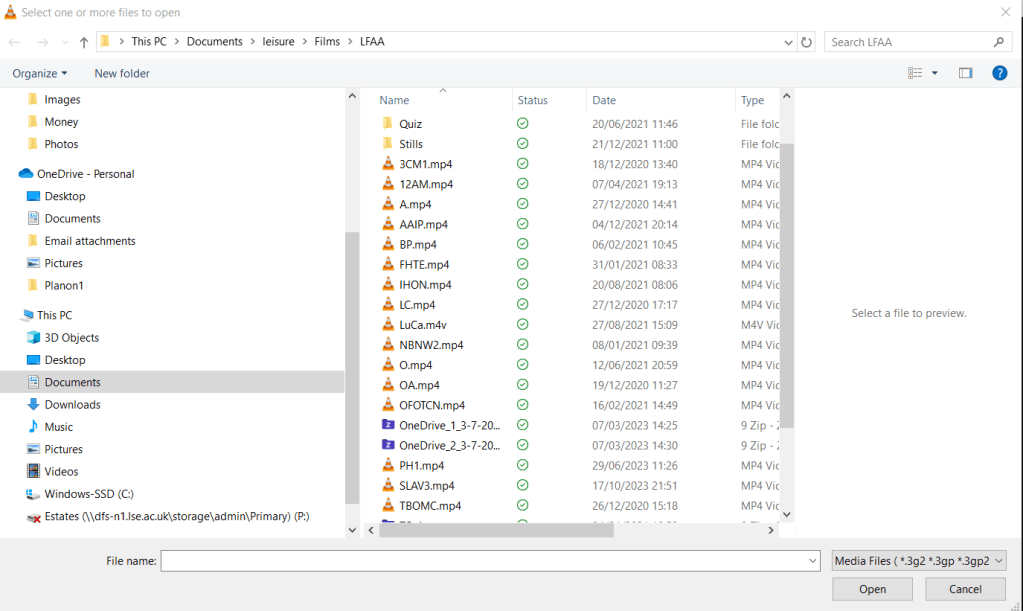
Find and select the .mp4 or .m4v file that you want to play and click Open:
Subtitles and Other Controls
Note that the controls may be in a different place and look different from the screenshots below if you are using Mac OS rather than Windows.
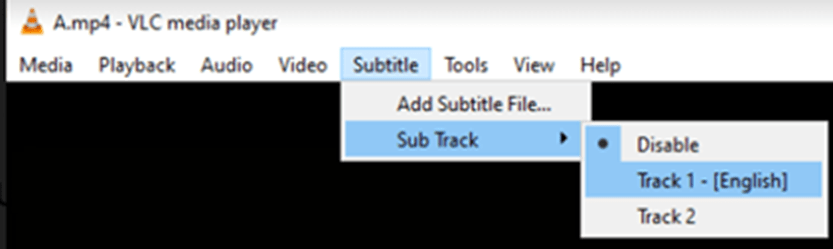
To switch on subtitles for the film select the Subtitle menu, then Sub Track and from the sub-menu select Track 1 – [English]:
Full screen toggle
Note, these menus at the top disappear when you are in full screen view, so once you are in the film, if full screen view is on switch it off. To do this just double-click anywhere on the screen. This should reveal the menu at the top and the toolbar at the bottom. Select the English subtitle track as above and then double-click again to switch full-screen view back on.
Only if that very easy method doesn’t work here is the simple alternative: Move the cursor to the bottom of the screen without clicking it. This reveals the control toolbar at the bottom:

Click the control circled above to toggle full-screen view off. Set the English subtitles as described above. Then click the control circled below to switch back to full-screen:

Volume
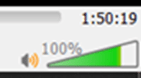
Note that the volume control is at the right end of the bottom toolbar, where you can also see the total length of the film:
If you don’t hear any sound at all try selecting a different audio device from the Audio menu.

Return to Motion Pictures
Return to How to download the first film
Return arrow image by starline on Freepik
 The Babbling Pond